
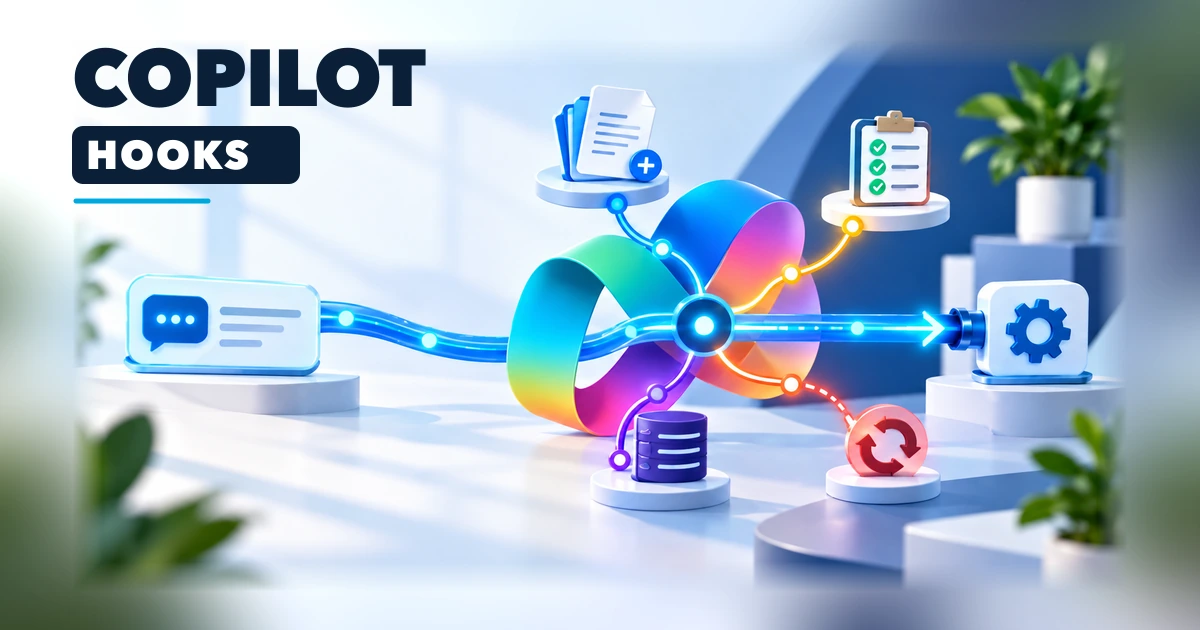
Copilot Studio Hooks (preview) run workflows at selected points in an agent's lifecycle, including when a prompt arrives or before a tool call. Microsoft documents Hooks for agents powered by the GitHub Copilot harness. If a hook workflow fails, times out, or returns an unreadable response, the agent continues as though the hook returned nothing. A Pre tool use hook can deny a tool call, but hook failure does not fail closed.
Microsoft's October 7 monthly update described Hooks among the September 2026 Copilot Studio changes. The current documentation labels the feature as a preview for agents using the GitHub Copilot harness. Availability and details can change during the preview.
What a hook changes
A tool runs when the agent chooses it. A hook is tied to an event and runs when that event fires. The workflow supplies the event's configured response back to the agent. Hooks are useful when a task should run at a lifecycle point without depending on the agent to remember to call a separate tool.
| Event | Practical use | Relevant response |
|---|---|---|
| Start (pre-loop) | Load approved case or region context for a session. | additionalContext |
| User prompt submitted | Normalize or rewrite a prompt, or suppress the turn's output to the user. | modifiedPrompt, suppressOutput |
| Pre tool use | Check or modify a tool call before it executes. | permissionDecision: "deny", modifiedParameters |
| Post tool use | Transform a successful result or record a secondary event. | modifiedResult, additionalContext |
| After tool failure | Give the agent context about a failed tool. | additionalContext |
| Error | Choose how the agent should respond to an error outside a tool call. | errorHandling, retryCount, userNotification |
Only Pre tool use can block an action. The other event types can add context or change values, but cannot stop the agent. All outputs are optional; leaving one empty retains the agent's default behavior.
suppressOutput controls what the user sees. It does not deny a tool call or replace authorization. Use Pre tool use to return permissionDecision: "deny", then enforce the same rule in the underlying system that performs the operation.
A practical pre-tool check
Suppose an agent can archive a customer case. A Pre tool use workflow can inspect the tool name and parameters, check a business condition, and return permissionDecision as deny when the request should not proceed. Scope the hook to the archive tool rather than every tool if that is the only action it needs to govern.
Build the decision from trusted system data where possible. Validate the case identifier against the connected system, check the caller's authorization there, and handle missing metadata explicitly. Microsoft notes that metadata fields can be empty and that hook inputs such as prompts, tool results, and error messages are untrusted. Do not make an authorization decision from a model-generated explanation alone.
Fail-open limitation: a successful Pre tool use response can deny a call, but a workflow failure, timeout, or unreadable response does not fail the agent closed. Microsoft explicitly says not to rely on a hook as the only safeguard for a business-critical rule. Enforce permissions in the underlying connector, API, or data platform as well.
The same distinction matters for audit logging. A Post tool use hook can write telemetry after a successful tool run, but a failed hook can leave no record. Use an independent, durable audit path when complete records are a compliance or operational requirement.
Configure and publish the hook
- In the agent's command bar, open the three-dot menu and choose Hooks, then Create.
- Select the lifecycle event, give the hook a descriptive name, and choose the relevant tools when the event supports tool scoping.
- Select a compatible workflow, or create one from the hook dialog. The starter workflow includes When an agent calls the flow and Respond to the agent nodes with the event's expected fields.
- Keep the starter input and output field names. Add the workflow logic between the nodes, save it, and publish the workflow.
- Return to the hook dialog, select Done, save the agent, and publish the agent. A saved but unpublished workflow does not run for users, and adding the hook to a draft agent does not activate it.
The hook stores a reference to a workflow, not a copy. Editing that workflow can therefore affect every hook that uses it. Check the workflow's other consumers before changing shared logic.
Test behavior, including failure paths
Before a rollout, test each event with representative inputs and inspect the activity trace (Öffnet in einem neuen Tab). For a Pre tool use policy, include allowed and denied calls, missing user fields, malformed or unexpected parameters, and the case where the workflow is unavailable or times out. Confirm the underlying data service still rejects an unauthorized operation if the hook does not return a decision.
For prompt rewriting, verify both the original and modified prompt paths. For post-tool handling, test success separately from tool failure; those are separate events. For error handling, test the workflow's retry or abort instruction and ensure retry counts are bounded. Never treat a test of the successful hook path as evidence that the failure path is safe.
Related Hub guide
- GitHub Copilot app local sandbox boundaries covers a separate product and local execution scope; it does not describe Copilot Studio Hooks.
Preview boundaries and sources
Hooks attach to a specific agent and remain in preview for the GitHub Copilot harness. Microsoft's announcement describes the feature's intent; Learn is the operational source for event contracts, publishing requirements, and failure behavior. Microsoft also notes that building, testing, and evaluating these agents can use Copilot Credits. Check current tenant billing before a rollout. No tenant hook was configured or tested for this guide.
- Microsoft announcement: New and improved Copilot Studio, September 2026 (Öffnet in einem neuen Tab)
- Hooks (preview): events, inputs, outputs, and limitations (Öffnet in einem neuen Tab)
- Use the activity trace to debug your agent (Öffnet in einem neuen Tab)
Editorial note: AI-assisted independent guide based on Microsoft's public announcement and preview documentation, checked October 26, 2026. No tenant hook was configured or tested for this article. There are no affiliate links or sponsorship, and Microsoft did not commission or control this guide.
Kommentare
Kommentare werden geladen.
Noch keine Kommentare.
Die Kommentare konnten nicht geladen werden.
Einen Kommentar schreiben